Premium
Import transactions from CSV
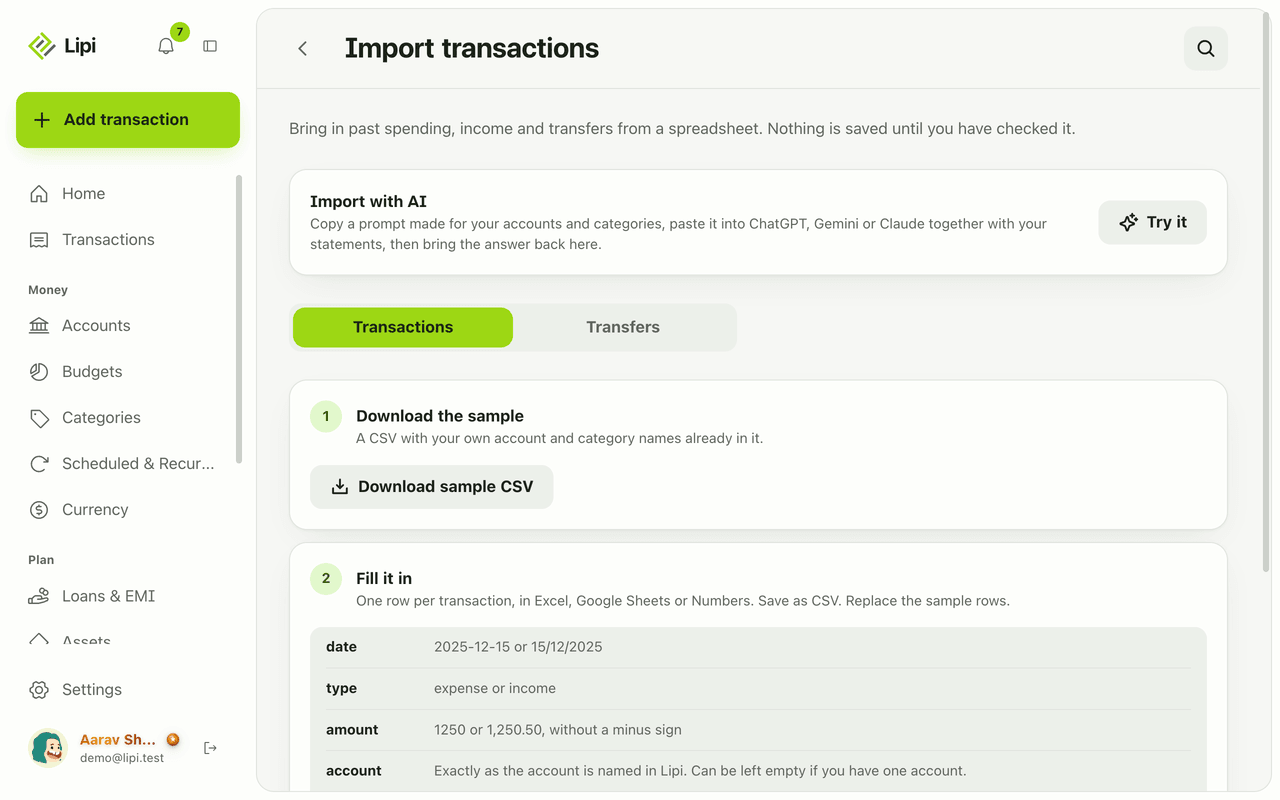
Bring past spending into Lipi from a spreadsheet or bank statement. Download the sample, fill it in, preview and confirm. Duplicates are skipped.
Problems it solves
- I have years of expenses in Excel or Google Sheets and do not want to retype them.
- My bank gives me statements as files and I want them in one place.
- I am afraid an import will create duplicates or wreck my accounts.
What it is
CSV import lets you bring past spending, income and transfers into Lipi from a spreadsheet. You download a sample file that already holds your own account and category names, fill it in, upload it and check a preview. Nothing is saved until you confirm. It is the way to import bank statement data into an expense tracker without sharing any bank login.
What problem it solves
If you tracked money in Excel or Google Sheets before Lipi, you do not want to start from zero. Import moves that history across in minutes. The preview lists errors line by line and skips duplicates, so a bad row or a second upload does not damage your books.
How it works
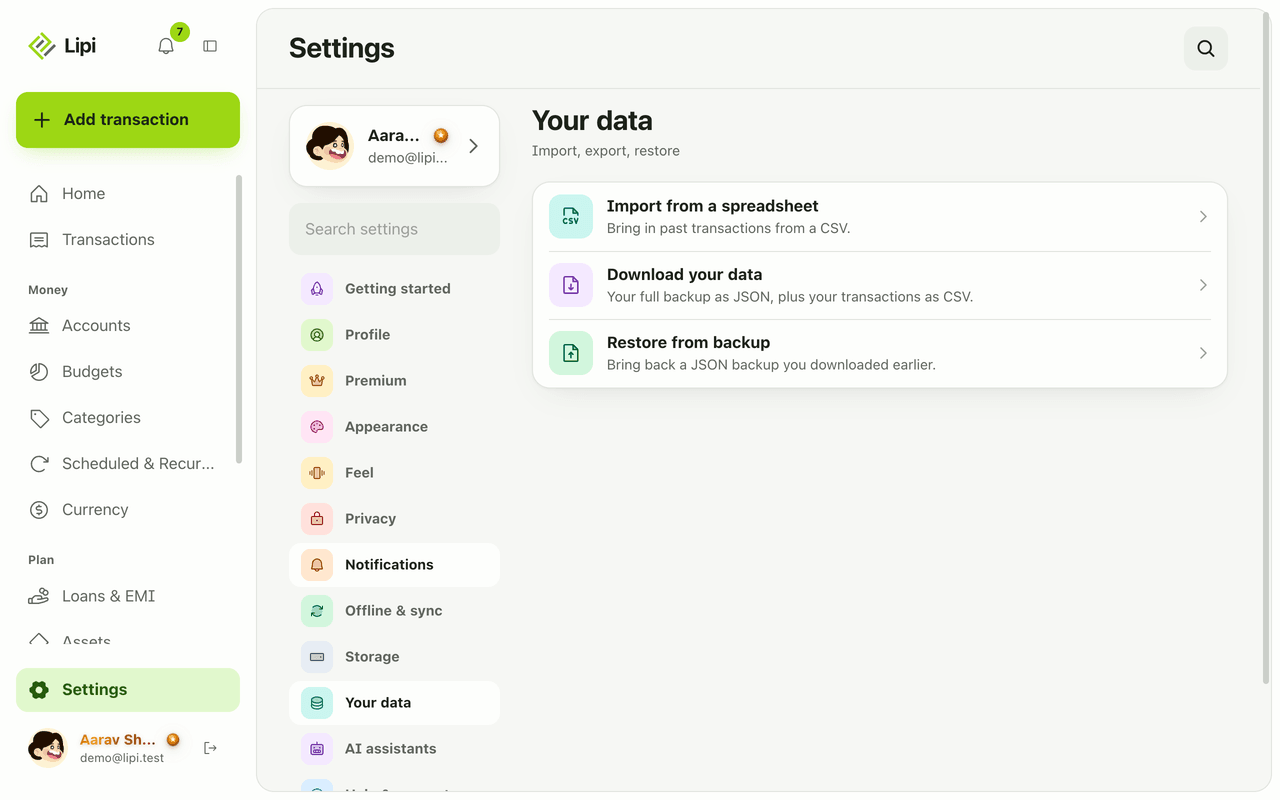
- Open Settings, then Your data, then Import from a spreadsheet. You land on Import transactions. Pick Transactions or Transfers under “What to import”.
- Tap Download sample CSV. The file already has your account and category names in it.
- Fill it in with Excel, Google Sheets or Numbers, one row per transaction. Save it as CSV. The columns are:
- date: 2025-12-15 or 15/12/2025
- type: expense or income
- amount: 1250 or 1,250.50, with no minus sign
- account: exactly as the account is named in Lipi. It can be empty if you have only one account.
- category: optional. A name Lipi does not know becomes a new category.
- note: optional.
- Upload the file. Lipi shows Reading file… and then a preview.
- Read the preview. It lists new accounts that will be created, errors by line, and duplicates (“already in Lipi, skipped”). Map any unknown account or category to one you have, then confirm. Lipi reports how many transactions were imported.
Import with AI
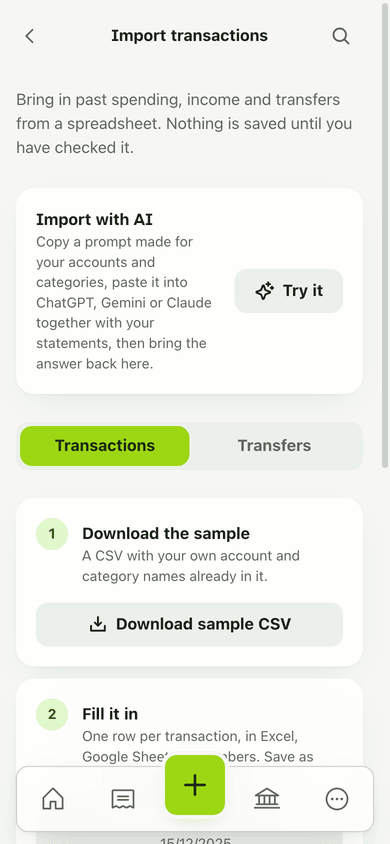
The Import with AI card at the top of the page helps when your data is a PDF statement, a screenshot or a pile of bills instead of a spreadsheet. Tap Try it and follow two steps. First, Copy prompt: it is written for your own accounts, categories and currency. Paste it into ChatGPT, Gemini or Claude and attach your statements. Second, paste the JSON or CSV the AI gives back, or choose the file, and tap Check and continue. Rows the AI was unsure about are flagged “Needs second look”. A note warns that pasting statements into an AI shares them with that provider, so read the privacy policy first.
Details and rules
- Premium only. The same Premium gate covers import, export and backup restore.
- Up to 2000 rows per file.
- Duplicates: same account, same day, same amount, same type. These are skipped on import and on backup restore. Entering a transaction by hand never blocks a duplicate.
- Dates may be written as 2025-12-15 or 15/12/2025 (day first).- Amounts must be positive. The type column says whether money went out or came in.
- Transfers use their own template. The amount is in the from account’s currency.
- Restoring a full JSON backup is a different flow, described on Export and backup.
- There is no live bank connection. You import files you already have.
Works with
Ask an AI assistant
CSV import itself is an app screen, but an assistant can do the same job. Connect Claude or ChatGPT with Full access, attach a statement and say “Add these to my Nabil Bank account and skip any I already have.” The assistant can use read_document to turn a photo of a statement into rows, then create_transactions to add up to 100 items at once. It shows you the list before it writes anything.
For AI assistants
Lipi’s MCP server gives an assistant these tools for this feature:
create_transactionsread_document
Questions and answers
Can I import my transactions into Lipi from Excel or Google Sheets?
Yes. Download the sample CSV from Import transactions, fill it in with Excel, Google Sheets or Numbers, save it as CSV and upload it. Lipi shows a preview and nothing is saved until you confirm. Import is a Premium feature.
Is CSV import free?
No. Import, export and backup are Premium features. Free accounts can add transactions one by one or ask a connected AI assistant to add them.
What happens to duplicates?
Lipi treats a row as a duplicate when an existing transaction has the same account, day, amount and type. The preview says how many are already in Lipi and skips them, so importing the same file twice does not double your spending.
Can I import transfers between my accounts?
Yes. Switch to the Transfers tab for a second template with date, from account, to account, amount, received, rate, fee and note. Received and rate are only for transfers between two currencies.
How many rows can I import at once?
Up to 2000 rows in one file. If your file is bigger, Lipi tells you it has too many rows and you split it into two files.
Does Lipi connect to my bank to import transactions?
No. Lipi does not ask for bank logins. You bring data in yourself, by CSV, by the Import with AI helper, or by asking an AI assistant to add it. No bank password is shared with Lipi.
Last updated:
More in Import, scan and backup
Receipt and bill scanner
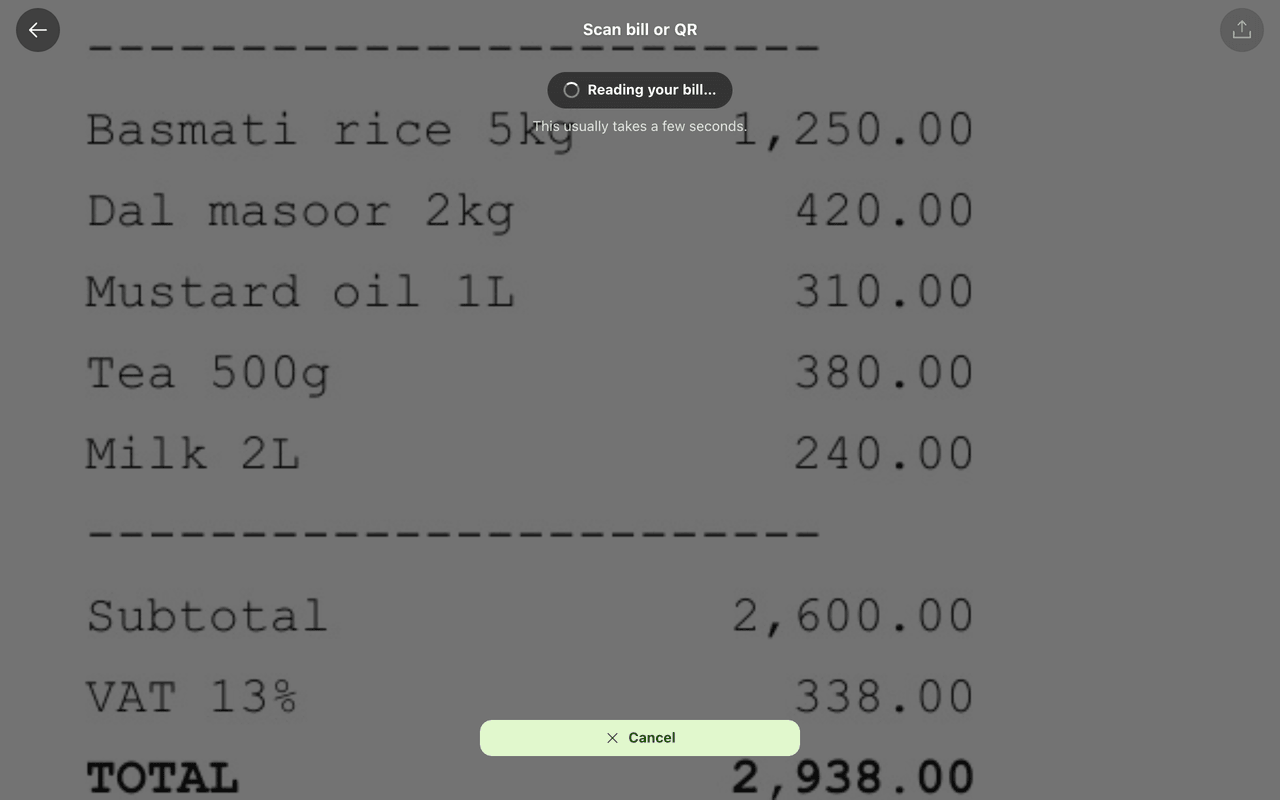
Yes, Lipi scans receipts and bills: it reads vendor, amount, date and a suggested category from a photo or PDF and proposes a transaction you review. Free gets 5 scans a month, Premium gets 100 a day.
Export, backup and restore
Yes, Lipi exports your data: a full JSON backup of the account and a CSV of every transaction, plus restore from a backup. Export, backup and restore are Premium features.